In this Python TKinter article i want to show you How To Create Canvas In Python TKinter.
if you are interested in Python GUI Development, you can check the below links.
The Canvas is a rectangular area intended for drawing pictures or other complex layouts.
You can place graphics, text,widgets or frames on a Canvas.We Can Create Difference like arc,
polygon, image, line.
Also you can read more articles on Python GUI Development
1: PyQt5 GUI Development Tutorials
2: Pyside2 GUI Development Tutorials
3: wxPython GUI Development Tutorials
4: Kivy GUI Development Tutorials
This is the complete code for How To Create Canvas In Python TKinter
1 2 3 4 5 6 7 8 9 10 11 12 13 14 15 16 17 18 19 20 21 22 23 24 25 26 27 28 29 30 31 32 33 34 | from tkinter import * class Root(Tk): def __init__(self): super(Root, self).__init__() self.title("Tkinter Canvas Widget") self.minsize(640, 400) self.wm_iconbitmap('icon.ico') self.canvasWidegt() def canvasWidegt(self): canvas = Canvas(self, bg = "blue", height = 250, width = 300) coord= 10, 50, 240, 210 #canvas.pack(expand=YES, fill=BOTH) arc = canvas.create_arc(coord, start=0, extent=150, fill="red") canvas.pack() root = Root() root.mainloop() |
So at the top we have created our Root class that extends from TK, and we have added our window requirements like title, size and icon in the constructor of the class.
1 2 3 4 5 6 7 8 9 10 | class Root(Tk): def __init__(self): super(Root, self).__init__() self.title("Tkinter Canvas Widget") self.minsize(640, 400) self.wm_iconbitmap('icon.ico') self.canvasWidegt() |
after that you can create def canvasWidget() method, this is the method that we are going to
create our canvas object and in the constructor we add the parent, color, width and height. after
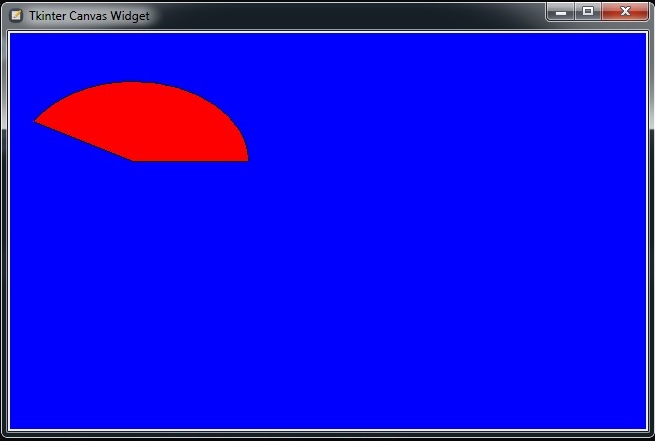
you can specify your shape in the canvas , i want to draw an arc.
1 2 3 4 5 6 7 8 | def canvasWidegt(self): canvas = Canvas(self, bg = "blue", height = 250, width = 300) coord= 10, 50, 240, 210 #canvas.pack(expand=YES, fill=BOTH) arc = canvas.create_arc(coord, start=0, extent=150, fill="red") canvas.pack() |
So this canvas will not take our whole tkinter window, if you see in the def canvasWidget()
method i have commented the canvas.pack(). so if you want your canvas takes whole TKinter
window you can uncomment that.
1 | canvas.pack(expand=YES, fill=BOTH) |
Run the complete code and this will be the result

Also you can watch the complete video for this article